
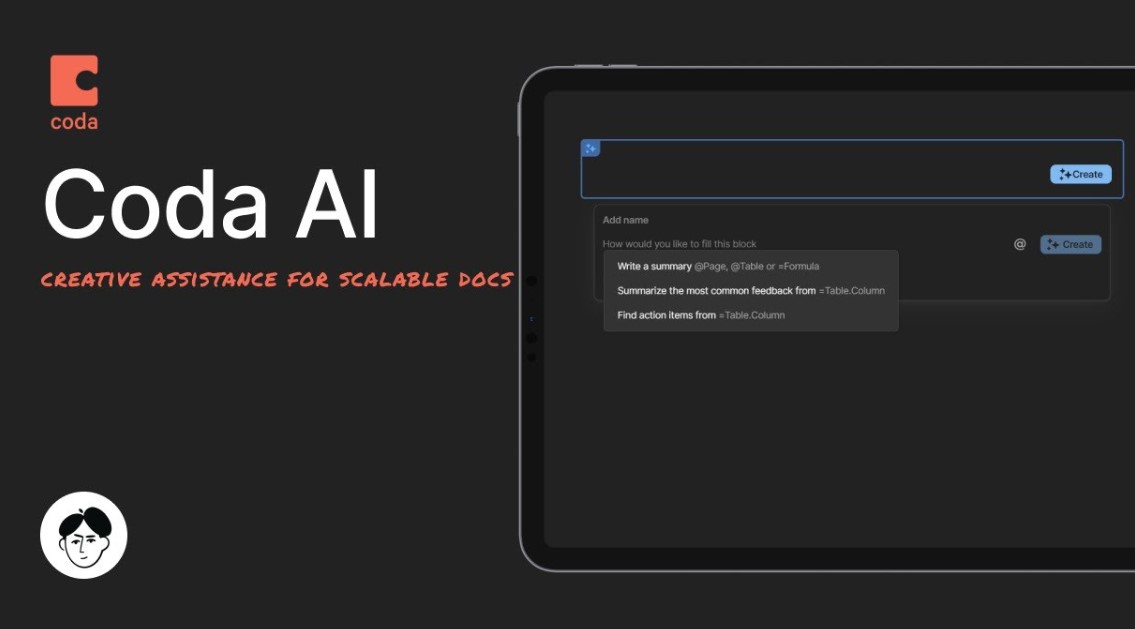
Coda AI: Our Honest Take on This “Do-It-All” Document Assistant
Honestly, I was a little skeptical at first. You see so many apps slapping “AI” onto their name these days, and a lot of it feels like a gimmick-just another slightly better auto-correct button. But the thing is, Coda AI is different. It’s not just a writing aid; it’s a context-aware helper that lives right next to your data. Think of it like this: your document isn’t just a static file anymore; it’s a living workspace that knows what’s in it. That, my friends, is a pretty big deal.
I spend a ridiculous amount of time dealing with meeting notes, project dashboards, and just plain old messy data. You know what? The mental fatigue from keeping all those pieces straight is real. Coda AI steps in as this kind of digital teammate, helping you build and maintain docs that really act like apps. It takes all the raw ingredients-your tables, pages, and notes-and actually helps you cook something useful.
The Big Idea: Why Context Matters So Much
Look, any large language model (LLM) can whip up a quick blog post outline or a snarky email draft. That’s fine. But the whole point of using a platform like Coda is to connect your work – to have your project plan speak to your task list, which then updates your executive summary. It’s the tightly linked nature of Coda that makes its AI so powerful.
The crucial difference here is contextual authenticity.
When I ask Coda AI to “Summarize the key decisions from the ‘Marketing Strategy’ page and list them as action items in the ‘Q4 Task Tracker’ table,” it doesn’t just guess. It knows exactly which page I mean and exactly which table it needs to talk to. It pulls real data, formats it, and puts it in the right place. That’s not a party trick; that’s genuine productivity.
- Emotional Hint: When that little AI column in my task tracker auto-fills a priority level based on the due date and assigned team load-man, that’s a small sigh of relief I didn’t know I needed.
Using Coda AI to Escape Data Drudgery
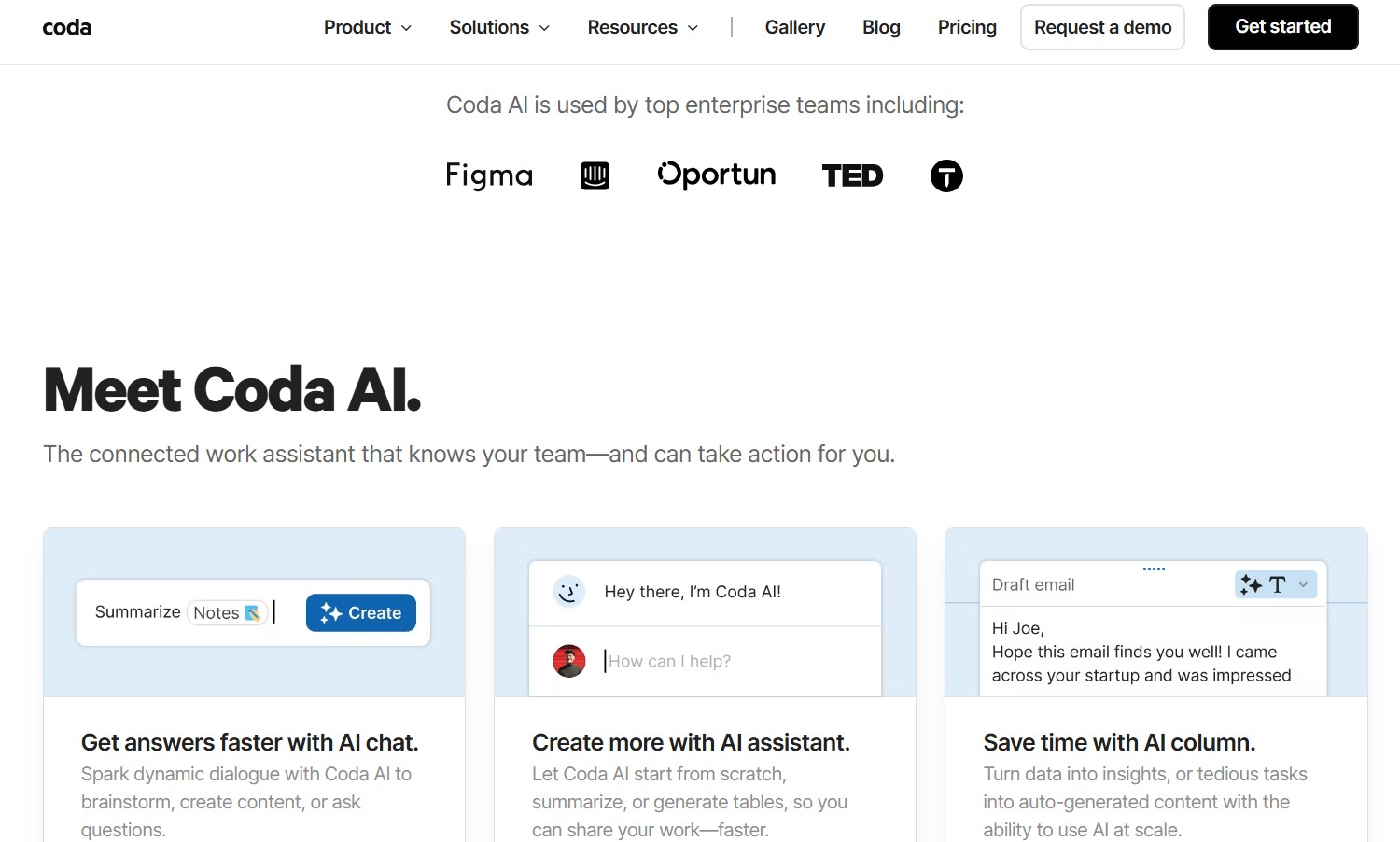
How exactly does this play out in real life? Well, you’ve got four main ways the AI integrates, and they’re all super useful.
- The AI Column: Your Data Robot
This is my personal favorite. Say you have a table of customer feedback. One column is the raw, messy text a customer wrote. Instead of manually reading and tagging everything, you just create an AI Column. Your prompt might be: “Assign a 1 to 5 positivity rating and extract the main topic from this feedback row.”
| Feedback Text | AI Rating (1-5) | AI Topic Extraction |
| “The app is fantastic, but the pricing page is confusing.” | 4 | Pricing Clarity |
| “I can’t even sign up; the form keeps crashing on mobile.” | 1 | Mobile Bug/Signup |
| “Love the new features, makes my workflow so much faster!” | 5 | Workflow Speed |
You set the instruction once, and as new feedback rolls in, the AI auto-fills the rating and topic. It’s like having a dedicated analyst for every single row of your data. This is what I mean by blending professional jargon (auto-fill, row-level analysis) with a casual explanation – it’s a robot for your repetitive data tasks.
- The AI Block: Instant Insights
The TL;DR is sometimes necessary. You have got loads of meeting notes, research, or a user manual. The AI Block allows you to place a small dynamic block into your document that can summarize this whole page into three bullet points. The best thing is that the summary block also changes automatically as you edit the source page. You make the intention once, and it remains evergreen. I really cannot describe the amount of time that will be saved before a large update meeting.
- The AI Assistant: Writing and Revising
It is a bit like the normal AI writing tools you may be familiar with, only it is built in. A simple slash command can be used to summon it and request it to write you a first draft of an email, brainstorm ten ideas on a project, or even use your scribbled, sloppy notes and convert them into a professional project brief. It is not flawless; it still requires a human touch in the process, which is some subtle guidance, but it can get you 80 percent of the way there in a few seconds. When you are sitting in front of a blank page and feel overwhelmed, it is an excellent method to get through writer’s block.
- AI Chat: Your Brainstorming Buddy
This is your own, casual chat room, which is located in a side panel. You can also query it with questions such as, “Where is the budget of the Q3 campaign listed in this document?” or “Provide me with the advantages and disadvantages of using the Zapier Pack to do this integration”. It takes the content of your open doc to provide answers, so you are not just chatting with a generic bot; you are chatting with a bot that actually read your homework.
Coda AI vs. The Other Guys: A Quick Knockout Round
I know, I know, the elephant in the room. Everyone is talking about Notion AI. Is Coda AI better? Well, that depends on what you’re trying to do. Think of Coda and Notion like two different construction kits. Notion is amazing for building huge, interlinked wikis and knowledge bases. It’s got that beautiful, text-heavy canvas that makes writing and linking pages feel effortless. Notion AI excels at text-focused tasks: generating content, summarizing pages, and knowledge retrieval.
But here’s the catch, the gentle contradiction I mentioned: Notion feels more like a super-wiki, while Coda feels more like an application builder. Coda has always focused on tables, buttons, and automations-it’s meant to do things.
Coda AI truly shines when it’s manipulating structured data and automating workflows.
| Feature Focus | Coda AI | Notion AI |
| Best for | Data automation, custom apps, complex workflows, reports. | Knowledge bases, content drafting, personal notes, wikis. |
| Data Interaction | High. Can analyze table rows, auto-fill columns, and trigger actions. | Low. Primarily summarizes and drafts text content from pages/databases. |
| Integration Depth | Deeper. Integrated with Coda’s formulas, buttons, and Packs. | More text-focused, great for content-centric tasks. |
| Vibe Check | A programmable, custom-built data analyst. | A super-powered content editor and transcriber. |
Honestly, if your work centers around spreadsheets, databases, and automating tasks between those data sources, Coda AI is going to feel like a much better fit. It literally allows the data in your tables to talk to the AI and have the AI write back into those tables. That’s a huge operational step up.
How the Tech Actually Works (And Why it Doesn’t Feel Clunky)
The big trick Coda pulled off is making this powerful technology feel spontaneous and in the moment. They didn’t just bolt an LLM onto a document editor; they made it a core “building block.”
They call these AI functions “Packs” internally, which is Coda’s term for third-party integrations (like a Gmail Pack or a Slack Pack). But they made AI a first-party Pack, meaning it’s seamlessly woven into the doc’s DNA.
When you type something like /AI, write an onboarding checklist, the Coda formula engine is actually doing the heavy lifting. It knows where you are, what table you’re referencing (if any), and then it sends this package of contextualized data to their LLM endpoint. The output isn’t just generic text; it’s a Coda-native output-it’s a checklist block, a formatted table, or a piece of text that @references other parts of your doc.
- Industry Metaphor: Think of Coda like an electronic breadboard. All the components (tables, buttons, text blocks) are wires and switches. Coda AI is just a new, highly intelligent type of component you can wire in anywhere, making your document a little robot capable of thinking.
Wait, So What’s the Catch? (No Tool is Perfect, Right?)
Let me be honest, there are a few things you have to get used to.
First, there’s a slight learning curve. Coda, in general, has a higher learning curve than a simple text editor. To really make Coda AI sing, you need to understand Coda’s core logic: how to link tables, what a formula is, and how those building blocks work together. If you’re a total beginner, it might feel a little much, but I promise the payoff is worth the initial effort.
Second, the AI runs on credits. It’s not an unlimited buffet on the basic paid plans, which is a bit of a bummer.
Coda AI Credits Explained (Briefly!)
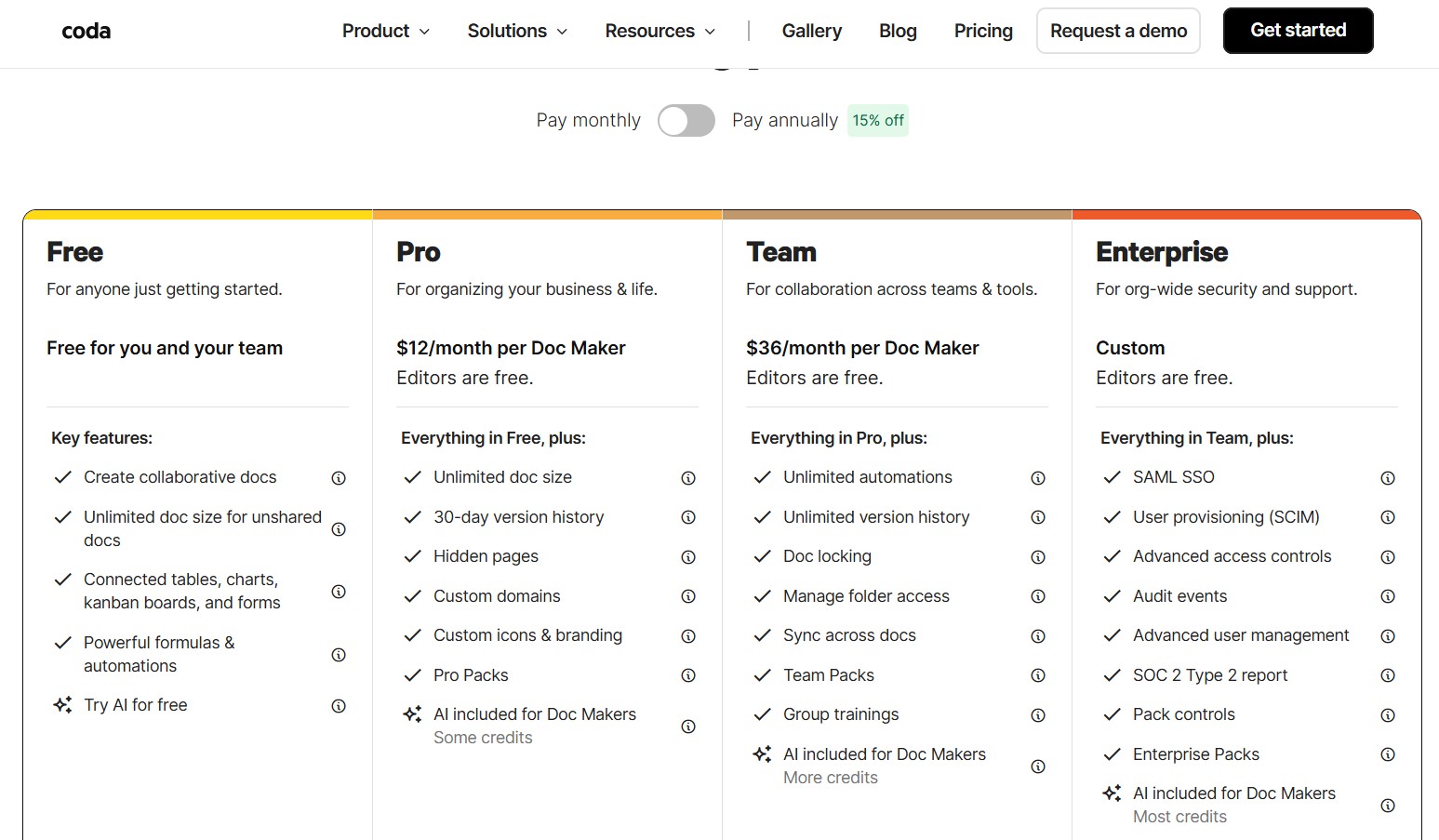
The Free plan gives you a taste, the Pro plan gives you a decent monthly allowance of credits per “Doc Maker,” and the Team plan bumps that allowance up significantly.
| Coda Plan | AI Credits per Doc Maker (Monthly) | My Take |
| Free | A small, free taste | Enough to kick the tires and see the power. |
| Pro | $12/month (Annually) gets you 1K credits | Great for individuals or small teams with moderate data needs. |
| Team | $30/month (Annually) gets you 3K credits | Essential for teams running multiple mission-critical AI automations. |
Credit usage varies, but one simple AI column calculation on a row might cost a few credits, while generating a huge summary could cost more. It forces you to be smart about your prompts – which, ironically, makes you a better prompt engineer!
Making It Yours: How to Actually Get Started
So, you want to try it out? Here’s the simplest path I found to see the real power of Coda AI without drowning in complexity.
Two Simple AI Wins for Anyone
- Summarize Your Meeting Notes: Next time your team has a huge, sprawling page of meeting notes, don’t read the whole thing. Just type /AI block at the top of the page. Then write: “Summarize the three main decisions and list the associated action items with a checkbox next to them.” Boom. Instant, formatted executive summary.
- Auto-Assign Priority: If you have a task tracker, add a new column and select the AI column type. Set the prompt to something like: “Given the task description and the due date in this row, assign a priority of “High”, “Medium”, or “Low.'” Then, just sit back and watch it work as you add new tasks. It’s surprisingly good, and it reduces the decision fatigue for whoever manages the list.
It’s about letting the AI handle the little, repetitive mental hops so your team can focus on the big, meaty problems. That’s what we all really want, isn’t it? To stop feeling like a glorified data entry specialist.
FAQ
Is Coda AI included in every Coda plan?
You get a small amount of Coda AI access on the Free plan, but you’ll need the Pro or Team plan to get a decent amount of monthly credits per Doc Maker. The Free tier is really just a sampler.
Can Coda AI connect to outside apps?
Absolutely. Since it’s integrated with Coda’s Packs (Coda’s term for integrations), the AI can pull in data from apps like Slack, Google Calendar, or Jira, and then use that external data as context for its output. It’s a true data blender.
Does the AI work on my private documents?
Yes, it does. Coda AI works on the content of the specific document it’s running in, using your existing text and data as context. Coda is very clear about its privacy and data handling, emphasizing that your data is secure and not shared to train other models.
Is Coda AI better for writing or for data management?
Honestly, it leans toward data management and workflow automation. While it’s a perfectly capable writing assistant, its real strength is manipulating the structured data in Coda’s tables – think auto-categorization, summarization of data, and filling out columns.
What kind of prompts work best with Coda AI?
You know what? Be blunt and specific. Tell it exactly what to do and what format to create. Instead of “Write a brief,” try “Act as a Product Manager and write a 500-word brief for a new feature, using a conversational tone and referencing the customer feedback in the ‘Comments’ table on this page.”
Can I use Coda AI to create new tables from scratch?
Yep! You can type a prompt like, “Create a table for a content calendar with columns for Topic, Due Date, Status, and Assignee.” It whips up a fully functional, structured table instantly. It’s pretty magical for kicking off a new project.
If I make a mistake, can I undo the AI’s work?
Of course! Just like any other action in Coda, you can easily use the standard undo function (Ctrl+Z or Cmd+Z) right after the AI generates content. You can also re-run the prompt or tweak the AI’s output manually.
Conclusion
Look, we’ve all been there: trapped in a document that feels more like a prison than a helper. Coda AI is one of those tools that genuinely feels like it’s trying to get you out of that cycle. It’s not about generating more fluff; it’s about generating structure and actionable insight from the work you’ve already done.
If you’re a power Coda user already, this is a must-use upgrade that will fundamentally change how you build your doc-apps. If you’re stuck juggling spreadsheets, Word docs, and project trackers, maybe it’s time to check out Coda’s unique approach. It might just be the secret weapon you need to finally feel like you’re working smarter, not just harder.







+ There are no comments
Add yours