
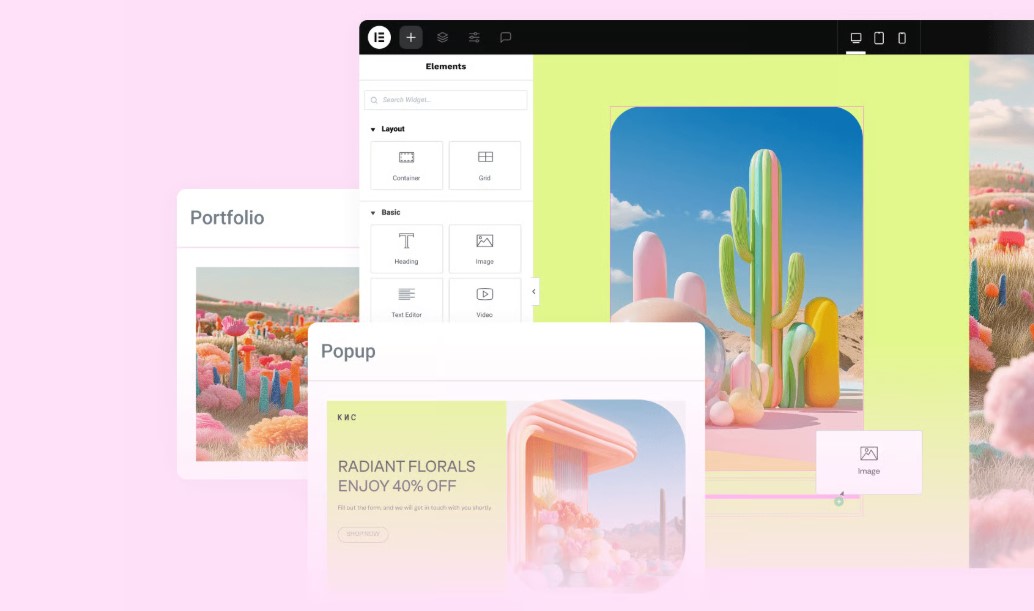
My Honest Elementor AI Review: A Hands-On Look
You know that feeling when you’re staring at a blank WordPress canvas, and your brain just… freezes? Yeah, me too. We’ve all been there. You need a headline that pops, but everything you type sounds like a corporate robot wrote it. Or you need a specific CSS hover effect, but you can’t remember if it’s transform: scale(1.1) or just zoom. Enter Elementor AI.
When I first heard about it, I rolled my eyes. Honestly, does every tool need an AI button now? It feels like my toaster is two firmware updates away from asking me for a prompt. But after spending a few weeks actually building sites with Elementor AI, I have to admit – it’s not just a wrapper for ChatGPT. It’s baked right into the interface in a way that actually makes sense for web design.
Is it perfect? No. Does it replace a real designer? Absolutely not. But can it save you from banging your head against the keyboard at 2 AM? Let’s find out.
What is Elementor AI, Anyway?
If you’re thinking this is just a text generator, you’re missing the bigger picture. Elementor AI isn’t just about writing catchy headlines (though it does that). It’s a set of tools integrated directly into the Elementor builder that handles:
- Text Generation: Rewriting copy, translating languages, and fixing grammar without leaving the editor.
- Code Generation: Writing Custom CSS and HTML snippets so you don’t have to Google “how to center div” for the thousandth time.
- Image Creation: Generating royalty-free images, expanding backgrounds, and removing objects.
- Layout Creation: Building entire container structures based on a simple description.
The thing is, context matters. Using ChatGPT in a separate tab is fine, but you have to do it constantly. Elementor AI knows where you are working. If you ask it to write a button text, it knows it needs to be short and punchy. That integration is the real selling point here.
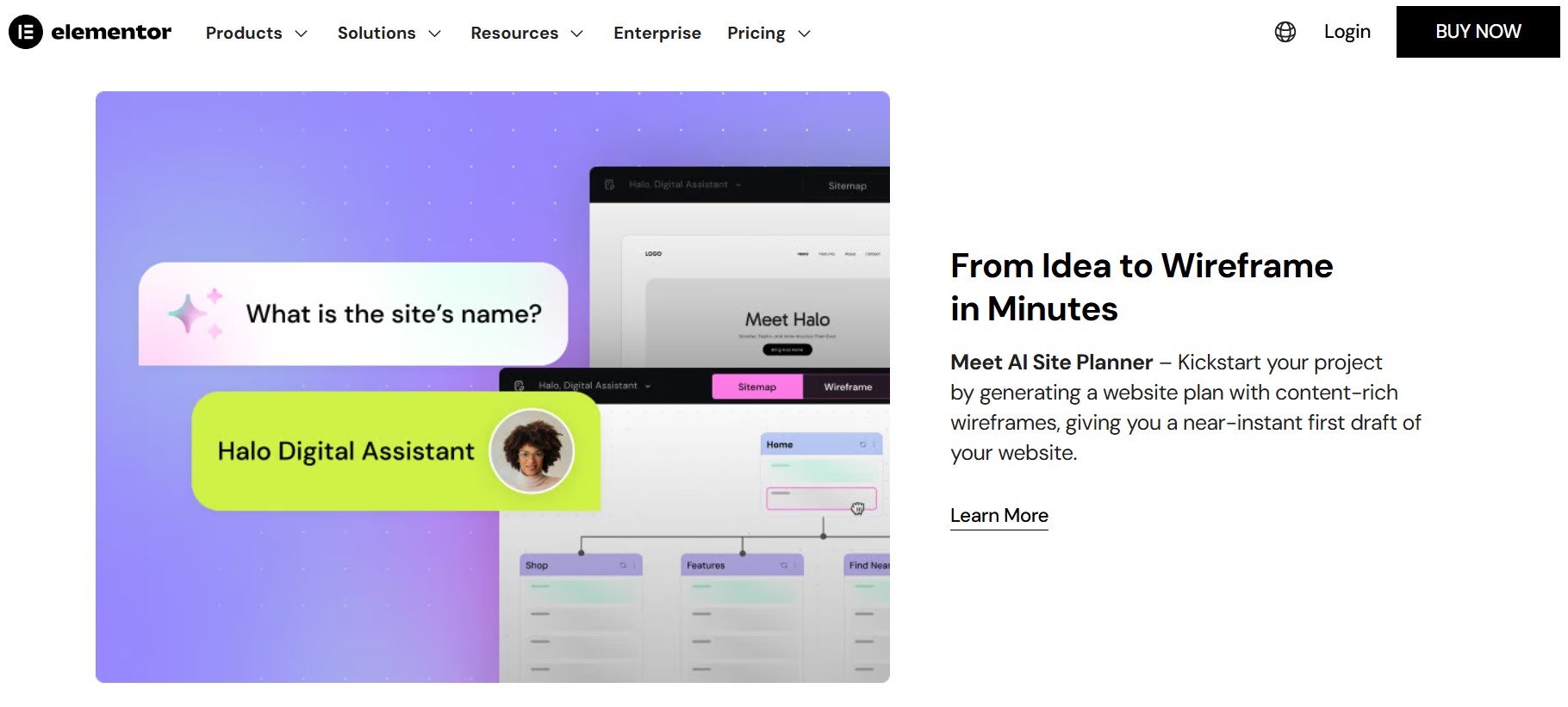
Elementor AI Review: The Image Generator Test
Okay, let’s talk about the visuals. I decided to put the image generator to the test because, let’s be real, finding good stock photos is a nightmare. You either pay $20 for a photo of “business people shaking hands” or you spend hours scouring free sites. I needed a background image for a hero section – something specific: “A futuristic cyberpunk coffee shop with neon lights, 4k, realistic.” I clicked the AI icon on the image widget, typed that in, and hit generate.
The Result:
It gave me four variations. Two were a bit weird (one cup had three handles – classic AI), but the other two were actually usable. The best part? I didn’t have to download anything or optimize the file size. I just clicked “Use Image,” and it was inserted directly into the layout.
But here’s the killer feature: Generative Fill.
I had a photo of a desk that was almost perfect, but it was too narrow for a full-width banner. Usually, I’d have to open Photoshop, use Content-Aware Fill, export, and re-upload. With Elementor AI, I just used the “Expand Image” tool. It extrapolated the background and made the image wide enough to fit the screen.
Is it Midjourney level quality? sometimes yes, sometimes no. But for web assets that just need to look good as a background? It’s a massive time-saver.
Custom CSS: The Secret Weapon
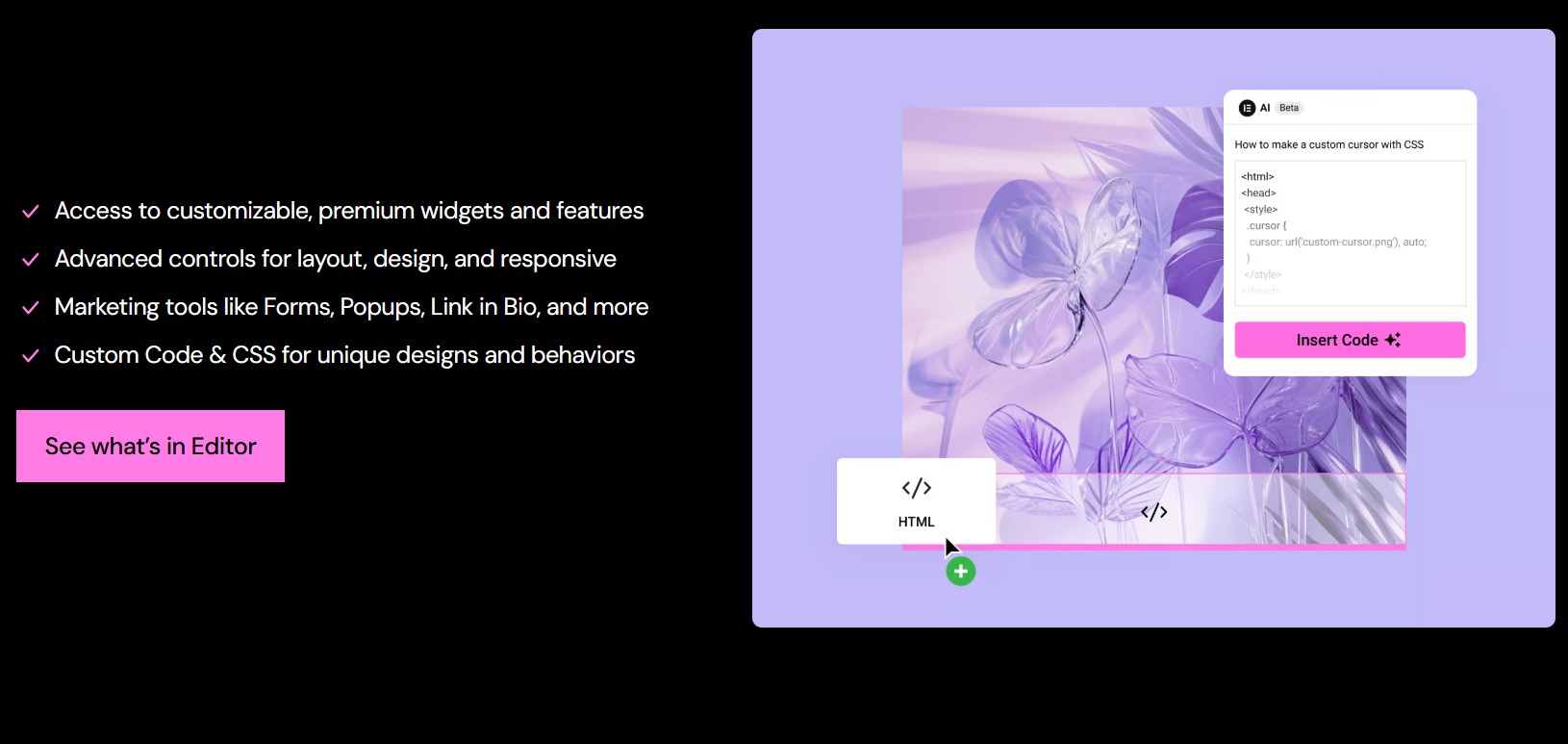
This is where the tech nerds (like me) get excited. I hate writing simple CSS. I know how to do it, but typing out selector { box-shadow: 0px 10px 20px rgba(0,0,0,0.1); } is tedious. With Elementor AI, you can right-click a widget, go to the Custom CSS tab, and type: “Add a soft floating animation that loops forever.” Boom. It spits out the code:
selector {
    animation: float 6s ease-in-out infinite;
}

@keyframes float {
    0% { transform: translateY(0px); }
    50% { transform: translateY(-20px); }
    100% { transform: translateY(0px); }
}
It inserts the code, and you see the animation happen instantly in the editor. It even uses the selector keyword correctly so it applies only to that specific widget.
Pro Tip: Always check the code. AI isn’t perfect and can sometimes write “bloated” CSS. But 90% of the time, it’s spot on.
Elementor AI vs. Alternatives
You might be wondering, “Why pay for this when I have ChatGPT?” or “How does it compare to Divi AI?” Here is a breakdown of how it stacks up against the competition.
| Feature | Elementor AI | Divi AI | Standard ChatGPT |
| Context Awareness | High (Understands widgets) | High (Understands modules) | None (Context blind) |
| Image Generation | Integrated (Create & Edit) | Integrated (Create & Edit) | Separate (DALL-E 3) |
| Code Generation | Excellent (Custom CSS/HTML) | Good | Good (Requires Copy/Paste) |
| Pricing Model | Credit System (Annual) | Unlimited (Monthly/Yearly) | Monthly ($20 for Plus) |
| Workflow Speed | Very Fast | Fast | Slow (Tab switching) |
The Credit System Controversy
This is the elephant in the room. Unlike Divi, which offers an unlimited plan, Elementor uses credits. Every time you generate text, code, or images, it costs credits:
- Text/Code: low cost (usually 1 credit).
- Images: high cost (around 33 credits).
For most users, the credits are enough. But if you are an agency pumping out 50 sites a month, you might hit the limit. It’s something to keep in mind.
Elementor AI Pricing and Value
Let’s break down the cost. Is it worth opening your wallet? Elementor AI is a separate subscription from the Pro plugin. You can’t just buy Pro and get AI (which is a bummer, honestly):
- AI Starter: ~$4/month (billed yearly). Good for one site, mostly text and code.
- AI Power: ~$8.25/month. The sweet spot for freelancers. Plenty of credits for images.
- AI Visionary: ~$16/month. For heavy users who generate tons of images.
Is it expensive?
Compare it to a stock photo subscription (usually $20+/mo) or a copywriting tool like Jasper ($40+/mo). If you use it to replace those, it’s a steal. If you rarely use AI, it’s just another recurring bill you don’t need.
Pros and Cons
The Good stuff:
- Deep Integration: It lives where you work. No tab switching.
- CSS Wizardry: It writes functional code that works with Elementor’s architecture.
- Image Editing: Expanding and resizing images inside WordPress is a game-changer.
- Translation: instantly translate a page into another language without plugins.
The Not-So-Good stuff:
- Credit Limits: The credit system creates “usage anxiety.” You hesitate to hit generate sometimes.
- Separate Cost: It’s not included in Elementor Pro.
- AI Hallucinations: Sometimes the code doesn’t work, or the images look creepy.
Elementor AI – My “Personal Project” Experience
I recently used Elementor AI to build a landing page for a local bakery. They had zero photos and zero copy. Usually, I’d have to wait weeks for them to send me content. Instead, I used the Layout Generator. I typed: “A modern, rustic bakery landing page with a hero section, a menu grid, and a testimonial slider.”
It built the wireframe. Then I used the text generator to fill in the headlines (“Freshly Baked, Made with Love”). Finally, I generated some placeholder images of croissants and coffee.
The whole process took me about 45 minutes.
Did I use the AI images in the final live site? No, the client eventually sent real photos. But having high-quality placeholders helped me sell the design fast. That speed is what you’re paying for.
Elementor AI Review: Who Is This For?
- The “One-Man Band”: If you are the designer, copywriter, and developer all at once, this tool is your best friend. It unblocks you.
- Agencies: Great for rapid prototyping and wireframing.
- Non-Coders: If you want custom styling but don’t know CSS, this bridges the gap.
If you are a hardcore developer who writes clean code by hand and hates “bloat,” you might find it annoying. But even then, using it to regex a form field validation script is pretty handy.
FAQ
Is Elementor AI free?
There is a free trial included with Elementor, but for long-term use, you need a paid subscription.
Can I use Elementor AI on the free version of Elementor?
Yes! You don’t need Elementor Pro to use the AI subscription, though they work best together.
Does it use my website data to train the AI?
Elementor states they do not use your private user data to train their public models, ensuring privacy.
What happens if I run out of credits?
You’ll need to upgrade your plan or wait for the renewal cycle. You can’t “top up” credits easily yet.
Can it write entire blog posts?
It can, but I wouldn’t recommend it. It’s better for short copy like headlines and product descriptions.
Is the code generated by AI clean?
Mostly yes. It uses standard CSS selectors, but always double-check it for redundancy.
Can I generate images in specific styles?
Absolutely. You can specify “oil painting,” “3D render,” or “photorealistic” in your prompt.
Final Verdict
So, is Elementor AI worth it? If you value your time at more than $10 an hour, then yes. The ability to generate a custom CSS snippet in 10 seconds versus 10 minutes of Googling pays for the subscription in one afternoon.
It’s not magic. It won’t make a bad designer good. But it removes the friction from the creative process. It turns “I don’t know how to do that” into “Done.” And honestly? Once you get used to having that little AI button right next to your text editor, going back to the “old way” feels painfully slow.
Next Step: If you’re on the fence, try the free trial on a staging site. Test the CSS generation specifically – that was the “aha!” moment for me.







+ There are no comments
Add yours